
Raptor Alert
Raptor Technologies, LLCEducation
3.289.00 Reviews
- Version
- 6.1.1
- Installs
- 100.00K
- Age Rating
- Everyone
Screenshots
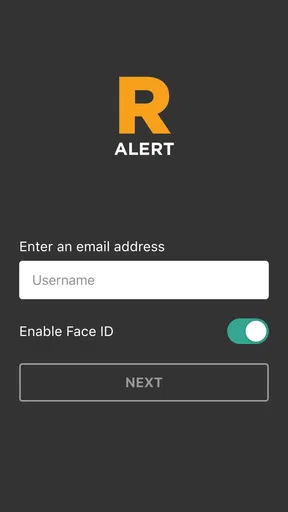
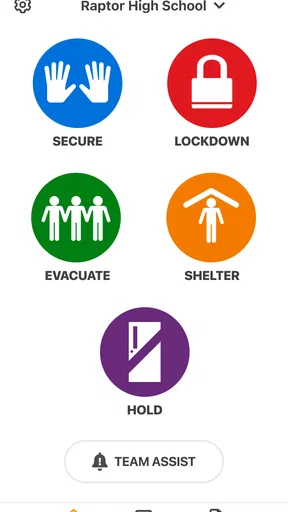
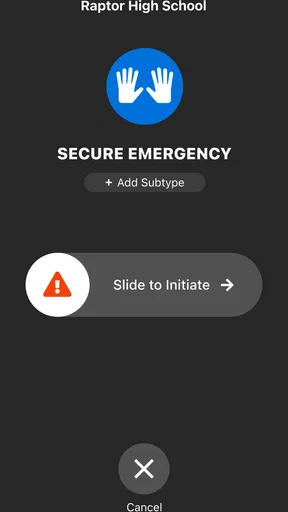
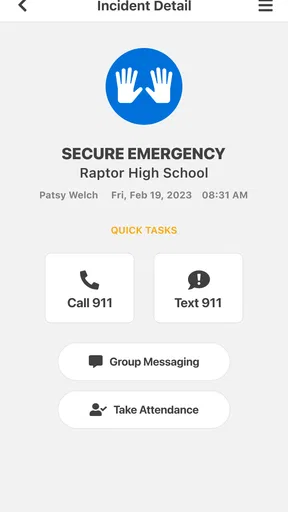
Our Review of Raptor Alert
 Analysis by Appyee
When I look at an emergency app for schools, I judge it differently from an ordinary education tool. A clean layout is useful, but the real question is whether a student, teacher, visitor, or staff member can understand what to do when attention is limited and the situation feels stressful. Raptor Alert, developed by Raptor Technologies, LLC, is an education app built around emergency management for K–12 settings. I found its purpose easy to understand, although its usefulness depends heavily on how well a school introduces it and how confidently people can use it before an incident happens.
The app is free, rated for Everyone, and has passed the point where it feels like an experimental download, with over one hundred thousand installs. Its current version is 6.1.1, and it requires Android 10 or later. Those details matter for schools because an emergency tool is only helpful when the devices used by the community can actually run it. I would not treat the installation itself as proof that every member of a school community will have equal access, but it does make the app relatively easy to consider as part of a broader safety plan.
How Raptor Alert feels when attention is limited
When attention is limited, I focus less on how many screens an emergency app offers and more on whether a person can recognize the next step without stopping to interpret the interface. For a school, that means making the app part of a familiar routine before anyone needs it, not asking people to learn it during a stressful moment. That practical test leads naturally to the question of how readable and easy to navigate it feels in a school setting.
Readability and navigation in a school setting
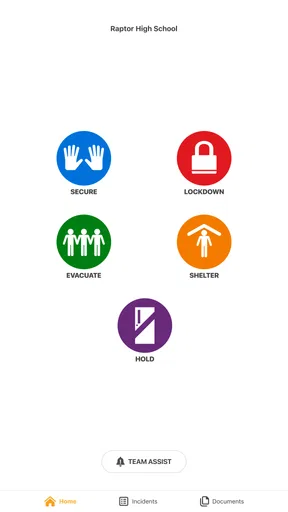
My first impression is that an emergency-management app should avoid making users search through layers of educational content, announcements, or unrelated controls. Raptor Alert is most valuable when its central purpose remains obvious: helping people respond to a school emergency. That focus is more important here than visual decoration. In a real incident, a teacher may be supervising a room, a student may be moving between classes, and a visitor may not know the campus well. A straightforward path is easier to remember than a feature-heavy interface.
I would encourage schools to test the app with people who have different levels of technical confidence rather than relying only on administrators or technology staff. A person who uses a phone comfortably may still hesitate when an alert arrives unexpectedly. The useful test is not simply “Can this person open the app?” It is “Can this person recognize the important action without coaching?” That distinction often reveals problems that a normal office demonstration misses.
Text size and contrast are especially important for an app used during urgent events. I would use the phone’s own display settings where available, including larger text or increased contrast, and then check whether the important controls remain understandable. Enlarging text can sometimes make a screen harder to scan if labels wrap or controls move, so the school should check the result on the actual phones people carry rather than assuming the setting will improve everything.
Navigation also needs to be learned before an emergency. I would not want a school to distribute the app with a single instruction such as “install this.” A short orientation should explain what the app is for, what an alert may look like, and which actions belong in the app versus the school’s other communication channels. That preparation is a practical accessibility measure because it reduces memory pressure for users who may struggle with unfamiliar interfaces, language-heavy instructions, or stressful multitasking.
The app’s average rating is 3.2 from around two hundred ratings, with close to ninety written reviews. I read that figure as a reason to set expectations carefully rather than as a final verdict. Emergency software can feel excellent in a controlled demonstration and frustrating in a real school environment if account setup, device availability, notification habits, or local procedures are inconsistent. The rating suggests that a school should run its own trial with representative users before depending on it for important communication.
Motor and sensory considerations
Emergency use creates a different motor challenge from ordinary browsing. A user may be carrying books, helping a child, wearing gloves, standing outdoors, or trying to keep a phone steady while moving. That makes small touch targets, crowded screens, and actions that require precision more troublesome than they would be in a calm setting. I would practice the most important interactions with one hand and with the phone held at different angles. If a person needs repeated taps or exact positioning, that should be treated as a training concern, not left for the incident itself.
People with tremors, limited dexterity, or fatigue may need more time to complete an action. A school should therefore avoid designing its response around the assumption that everyone can react at the same speed. Where the local safety procedure allows it, staff should know an alternative way to report or receive critical information. The app can be part of the response, but it should not become the only route for someone who cannot reliably operate a touchscreen under pressure.
Sensory conditions matter just as much. A loud alert can attract attention, but sound may be ineffective for a user who is deaf or hard of hearing, and it may be distressing for someone with sensory sensitivity. A visual notification may be missed by a person with low vision, particularly in bright sunlight or while moving through a crowded corridor. I would ask the school to test how alerts are noticed in quiet rooms, noisy hallways, outdoor spaces, and classrooms where phones may be stored away. The answer should shape training and backup communication, not just the app settings.
For users who rely on vibration, captions, screen magnification, screen readers, or other phone-level assistance, the right approach is hands-on testing. I would not claim that Raptor Alert provides a particular accessibility certification or specialized support without evidence. Instead, I would install it on the devices used by the people who need those tools and check the complete journey: receiving an alert, understanding it, opening the relevant screen, and completing the expected action. Accessibility is not only whether a control can technically be reached; it is whether the full emergency task remains clear.
One useful exercise is to ask a staff member to complete a practice workflow without looking at an instructor. Another is to repeat it after a short delay, because emergency procedures depend on recall. If the person remembers the purpose but not the sequence, the school may need a simpler explanation or a visible quick-reference guide. This is a more meaningful test than asking whether the app “looks accessible” during a presentation.
Situational access across the school community
The strongest case for Raptor Alert is a school that needs a focused emergency channel connected to its wider procedures. In a classroom scenario, a teacher may receive an alert while supervising students and need to interpret it without abandoning the group. The app is most helpful when the school has already decided what the teacher should do next, who takes attendance, how students with mobility needs are supported, and when the teacher should use another communication method. Software cannot replace those decisions.
Visitors and substitute teachers present a harder case. They may have less familiarity with the campus, fewer opportunities to practice, and different comfort levels with school technology. If the app is part of the visitor experience, the school should explain it in plain language and avoid assuming that a first-time user understands local terminology. A person who speaks limited English, has a cognitive disability, or is unfamiliar with smartphone alerts may need a human explanation and a non-digital backup.
Students also use phones in very different ways. Some carry a compatible device every day; others share devices, restrict notifications, have limited connectivity, or are not permitted to use phones during class. A school should be clear about whether the app is intended for students, staff, families, visitors, or a combination of these groups. I would be cautious about treating installation numbers as evidence of coverage. A downloaded app is not the same as an active, understood, and reachable emergency channel.
Parents and guardians may also interpret school alerts differently from staff. They may be away from the campus, caring for another child, or receiving several messages at once. Raptor Alert may fit a school’s internal response better than a general messaging app, but families still need clear guidance about what an alert means and what they should not do. For example, rushing to the campus can complicate an emergency response if the school has instructed families to wait for further information. The app should support a communication plan rather than create a second, confusing stream of instructions.
There is a useful trade-off here. A dedicated emergency tool can keep urgent information separate from ordinary classroom messages, which may improve attention. On the other hand, every additional channel creates another habit to learn and another place where a user might miss information. Compared with email, text messaging, or a school’s general communication platform, Raptor Alert makes more sense when the institution wants emergency management to have its own workflow. A general messaging tool may be easier for families already using it, but it may not provide the same focused context for school incidents.
Where the practical barriers remain
The biggest barrier is not necessarily the screen; it is the surrounding system. A school must decide who maintains access, how new staff are introduced, how departing users are removed, and how practice sessions are communicated. I would ask these questions before recommending adoption: Who owns the response procedure? Who checks that people can receive alerts? How are exceptions handled for people without compatible devices? What happens if the phone is silent, offline, misplaced, or unavailable?
Device compatibility can also divide a community. The current Android requirement of version 10 or later is reasonable for many modern phones, but it still excludes older devices. In a school with mixed hardware, administrators should identify affected users before presenting the app as universal. The same applies to iOS users: the school should verify the supported experience on the Apple devices it actually relies on rather than assuming that the Android requirement answers every platform question.
Emergency apps can also create anxiety if alerts are unclear or arrive without enough context. A user may not know whether a message requires immediate movement, sheltering, reporting, or simply awareness. I would prefer a school to pair every alert type with a rehearsed explanation and a plainly stated next step. This is particularly important for autistic users, people with anxiety, and anyone who finds ambiguous notifications difficult to process.
Language is another practical issue. Short instructions are not automatically easy instructions. Terms familiar to emergency planners may be confusing to students, families, or visitors. Schools should review their own messages for plain language and consider translated guidance where needed. The app can deliver a message, but inclusive communication depends on how the institution writes and explains that message.
Privacy and trust affect participation too. People may hesitate to install a safety app if they do not understand what it is used for or when they are expected to interact with it. I would want the school to explain the app’s role in its safety process without pressuring users to treat a phone as a substitute for staff support. Clear boundaries make adoption more comfortable, especially for families who are cautious about school technology.
Another limitation is that a rating of 3.2 can reasonably make a prospective administrator pause. With over two hundred thousand ratings? No—the visible rating count is closer to two hundred, so I would not treat it as a broad measure of every school’s experience. The more useful conclusion is that the app deserves a local pilot, accessibility checks, and a documented fallback plan. That is good practice for any emergency system, but it matters even more when the user base includes children and people with different abilities.
Who should use it and who should look elsewhere
I would recommend considering Raptor Alert to a K–12 school that wants a dedicated emergency-management app and is prepared to support it with training, clear procedures, and alternative communication routes. It is a better fit for an institution that can coordinate administrators, teachers, students, and families than for a small group looking for a personal safety app. Its free price removes one obvious barrier to trying it, but the real cost is the time needed to configure habits, test devices, and keep the process understandable.
I would be more cautious for a school that already has a trusted emergency system used consistently by everyone. Adding another app may fragment attention instead of improving it. A general school communication platform may be the better choice when families are already trained on it and the school can clearly separate urgent messages from everyday updates. Conversely, a school whose current approach is scattered across email, informal messaging, and verbal instructions may benefit from evaluating a purpose-built option such as this one.
For an individual parent, student, or visitor, the decision should come from the school’s instructions rather than personal preference. Installing an app without knowing how the institution uses it may not improve safety. Ask what alerts it carries, what action is expected, whether a phone is required, and what non-phone option exists. Those answers will tell you more about practical accessibility than the app icon or store summary.
I also would not choose it as the sole solution for users who cannot depend on touch interaction, audio, visual notifications, or a compatible phone. That does not make the app unsuitable; it means the school must provide equivalent ways to receive and act on emergency information. Inclusive safety planning is strongest when digital and human support reinforce each other.
My inclusive verdict
After looking at Raptor Alert through the experience of different users, I see a focused tool with a sensible place in K–12 emergency planning, but not a complete answer by itself. Its value comes from reducing confusion around urgent school communication. Its weakness is that the app can only be as inclusive as the procedures, devices, training, and backup routes surrounding it.
I like that it is free and aimed specifically at school emergencies rather than trying to be a general-purpose education platform. I also appreciate that its use can be evaluated in realistic settings: a noisy corridor, a busy classroom, a substitute teacher’s first day, or a family member receiving an alert away from campus. Those tests reveal whether the system works for actual people, not only for the administrator who configured it.
My practical recommendation is to treat a trial as part of adoption. Include users with different vision, hearing, motor, language, cognitive, and technology needs. Test the app alongside the school’s non-digital alternatives, then revise the instructions until a person can understand the next step without relying on memory alone. The most important accessibility feature is a response plan that does not leave anyone dependent on a single device or sense.
With that preparation, Raptor Alert can be a worthwhile addition for schools seeking dedicated emergency management. Without it, even a well-intentioned app may add another layer of uncertainty. I would recommend evaluating it, not blindly standardizing it: use the free app as one part of a practiced, human-centered safety system, and keep a clear alternative ready for every person who cannot access the main digital route.
Verdict
Strengths of Raptor Alert
- Fast alerts can help users react quickly to nearby incidents.
- Clear map view makes reported locations easier to understand.
- Useful for checking local activity before traveling or commuting.
- Simple reporting tools encourage users to share relevant sightings.
- Community updates can provide information not found in official channels.
Limitations of Raptor Alert
- Coverage may be limited in areas with few active users.
- Some reports may be inaccurate, outdated, or missing important context.
- Frequent alerts can become distracting without careful notification settings.
- Location access may raise privacy concerns for some users.
- The app’s usefulness depends heavily on consistent community participation.
Similar Picks in This Category
View All
Duolingo: Language Lessons
Duolingo4.7

Google Classroom
Google LLC2.8

Unacademy: Learn & Crack Exams
Unacademy3.2

Bible App for Kids
Life.Church4.4

Cake - Learn English & Korean
Cake Corp.4.7

Brainly: AI Homework Helper
Brainly4.5
Frequently Asked Questions
What is Raptor Alert and what is it used for?
Raptor Alert is a mobile safety and emergency communication app designed to help participating schools, workplaces, campuses, or organizations send urgent notifications to their communities. Depending on the institution using it, the app may provide alerts about severe weather, security incidents, closures, evacuations, or other time-sensitive events. Available features can vary according to the organization’s subscription and configuration.
How do I join or connect Raptor Alert to my organization?
Raptor Alert generally requires you to be associated with an organization that uses the platform. After installing the app, you may need to search for your school, district, workplace, or campus and follow its enrollment instructions. Some organizations require an invitation, verified email address, phone number, or account created through an administrative system. If your organization does not appear, contact its administrator rather than creating unrelated accounts.
Does Raptor Alert track my location or collect personal information?
The information collected depends on the version of the app and the settings enabled by the organization managing it. Raptor Alert may request contact details, account information, notification permissions, and possibly location access when location-based safety features are supported. Review the app’s current privacy policy and your device permissions before registering. You can usually manage permissions in Android or iOS settings, although disabling some may reduce alert functionality.
Will I receive emergency notifications immediately after installing Raptor Alert?
Not necessarily. Installation alone may not be enough to receive messages. You typically need to complete registration, select or join the correct organization, verify your contact information, and allow push notifications. Make sure your phone has an internet connection, notifications are enabled, and battery-saving settings are not blocking the app. Emergency communication can also depend on the organization sending an alert and on temporary network or device limitations.
Is Raptor Alert free, and is it available for both Android and iPhone?
The app is generally intended for community members to download without a separate consumer subscription, but access and available features are controlled by the organization using Raptor Alert. Check the official Google Play Store or Apple App Store listing for the current price, compatibility, developer information, and supported operating-system versions. Avoid downloading unofficial copies, and confirm that the app name and publisher match the legitimate Raptor Alert service.
